
If you have ever tried to log into your work dashboard through Okta from a hotel Wi-Fi, a coworking space, or a personal VPN and been hit with an "Access Denied" screen, a flood of MFA prompts, or a "New sign-in detected" alert that locks you out of your email — you have already met the wrong end of Okta's IP-aware security stack. In 2026, Okta is one of the most aggressive identity platforms when it comes to inspecting where your traffic comes from, and the wrong VPN or proxy choice will trip every alarm it has.
This guide explains exactly how Okta classifies IPs, why most consumer VPNs fail against it, and which proxy or VPN configuration actually keeps you logged in without setting off "Suspicious Activity" alerts. Everything below is based on Okta's official help documentation and security research published by the Okta Security team. We also flag where the line is between legitimate access (remote work, traveling employees, accessing personal Okta-protected accounts) and policies your company may have set against bypassing controls — that part is on you, not the tool.
TL;DR: Okta classifies every IP that touches your tenant by service category (VPN, Proxy, Tor, Anonymizer) and ASN. Datacenter VPNs from NordVPN, ExpressVPN, Surfshark and similar consumer brands are explicitly named in Okta's IP service categories and frequently blocked or flagged. The configurations that keep you signed in are static residential / ISP proxies and residential VPN exit IPs — both of which look identical to a normal home broadband connection. Rotating proxies will lock you out by re-triggering MFA every few minutes; static IPs and dedicated residential exits are the only setups that maintain a "consistent digital footprint" for Okta's behavior detection.
How Okta Inspects Your IP — The Three Layers You're Up Against
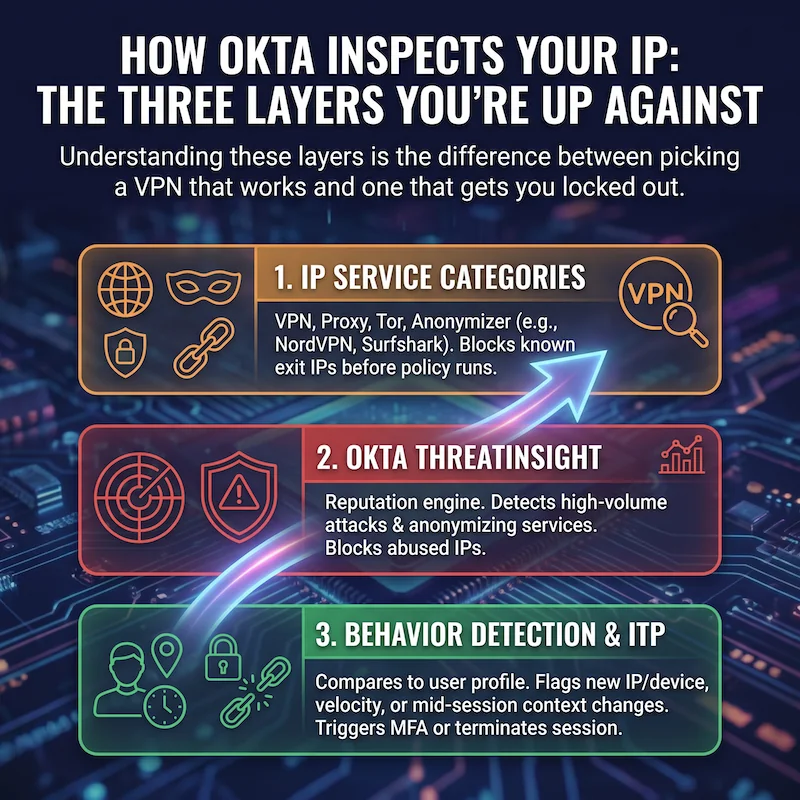
Okta does not just log your IP; it classifies it across at least three layers, all of which can deny your sign-in or escalate it to MFA. Understanding these layers is the difference between picking a VPN that works and one that gets you locked out.
1. IP Service Categories (VPN, Proxy, Tor, Anonymizer)
Every IP that hits your tenant is resolved against Okta's IP service category database. Okta's documentation explicitly lists categories that include "VPN", "Proxy", "Anonymizer" and "Tor", and even names specific consumer VPN brands as separate categories — Avast VPN, Google VPN, NordVPN, Surfshark VPN, and others. Once an IP is categorized as a VPN or anonymizer, an admin can use Okta's Enhanced Dynamic Zones feature to block or challenge the request before any policy evaluation runs.
This is why a $3/month VPN that looks fine on a Netflix check fails against Okta — the exit IP is part of a known VPN ASN that Okta has fingerprinted at the category level, regardless of which country you set.
2. Okta ThreatInsight
ThreatInsight is Okta's reputation engine. It detects high-volume credential-based attacks (password spraying, credential stuffing) and, since February 2024, also detects and blocks requests from anonymizing services. If your VPN exit is on a shared pool that other users have abused for failed logins, ThreatInsight may already be blocking your IP before you even hit the password page. The block reads as a generic "Access Denied" or, in the System Log on the admin side, a security.threat.detected or security.request.blocked event.
3. Behavior Detection and Identity Threat Protection (ITP)
Even if your IP makes it through the category check and ThreatInsight, Okta's Behavior Detection compares the new sign-in to a profile built from your previous activity. Okta's docs define a "new sign-in event" as one with a different IP, device, location, or velocity than the user's previous events. Hitting any of those triggers — like jumping from your home IP to a Tokyo VPN exit between two browser tabs — is what produces the "New sign-in" notification email and the extra MFA challenge.
On orgs that have Okta's newer Identity Threat Protection (ITP) enabled, this gets stricter. ITP fires a user.session.context.change event when your IP or device context changes mid-session, and policies can immediately end your active session across every Okta-protected application. Translation: an unstable VPN that briefly drops and re-connects through a different exit IP can sign you out of every work app at once.
Why Okta Blocks Certain VPNs and Proxies
Three concrete reasons your current VPN is failing, ranked by how often we see them:
The exit IP is on a datacenter ASN. Almost every consumer VPN — including the brands Okta names directly in its IP service categories — runs out of OVH, Choopa, Hetzner, M247, DigitalOcean and similar provider ASNs. Reputation systems treat traffic from those ASNs as inherently lower-trust. When an admin configures a Dynamic Zone with "VPN" or "Anonymizer" in the block list, every consumer VPN on those datacenter ranges gets denied at the network-zone layer.
The IP has been used for failed logins by other accounts. Shared VPN exits get hammered. ThreatInsight watches the failure rate per IP, and once the IP exceeds the threshold, it lands on the proxies-with-high-sign-in-failure-rates blocklist that Okta documents publicly. Your account did nothing wrong; you just inherited a noisy neighbour.
The IP changes too often. Rotating residential proxies, free public proxies, and aggressively-load-balanced VPNs change the exit IP every few minutes. Each change is a "new IP" event in Behavior Detection, which forces a step-up MFA — so you end up re-typing a TOTP code every five minutes. Worse, on ITP-enabled tenants, a mid-session change can hard-end your session and force a full re-login.
Okta "Access Denied" While Using a VPN — What the Error Actually Means
Two error patterns dominate the support forums. Knowing which one you have tells you exactly what to fix.
"Access Denied" with no MFA prompt. The block happened before any policy evaluated. This is almost always a network-zone blocklist or ThreatInsight blocking the IP. The fix is not stronger credentials; it is a different IP that does not match the categories your admin has put on the block list. A residential or ISP proxy with a clean reputation is usually the only thing that gets through.
Endless MFA loop. The IP itself is not blocked, but Behavior Detection keeps firing because every request comes from a different exit. This is the classic signature of a free VPN, a rotating residential proxy, or a poorly-configured commercial VPN that runs through round-robin pools. The fix is to lock to a single, dedicated IP — either a static residential proxy or a VPN with a dedicated IP add-on.
The Best Proxies for Okta: Residential vs. Datacenter
Of all the proxy categories on the market, only two consistently work against Okta in 2026:
Static Residential (ISP) Proxies — the "Okta Proxy" solution. These are IPs that originate inside ISP networks like Comcast, Vodafone or BT but stay assigned to you for 30 days or longer. To Okta's IP service category check, they look identical to a home broadband subscriber, because that is structurally what they are. Because the IP is stable, Behavior Detection treats subsequent sign-ins as the same trusted location and does not escalate to MFA on every request. This is what people mean when they say "Okta proxy" — they are looking for a static residential IP, not a dedicated tool. IPRoyal, MarsProxies, and Swiftproxy all sell static residential ISP plans starting around $6 per IP per month with unlimited bandwidth.
Rotating Residential Proxies — only when paired with sticky sessions. Plain rotating residential pools rotate the exit IP every request or every few minutes, which is exactly what Behavior Detection hates. Most modern providers, however, offer sticky session modes that hold the same IP for up to 24 hours (IPRoyal, MarsProxies, Swiftproxy). With sticky sessions enabled, rotating residential becomes workable for Okta — but a dedicated static residential plan is still the cleaner setup if you log in from the same machine every day.
Datacenter Proxies — almost always fail. The same ASN problem as datacenter VPNs. Save them for scraping and bot tasks, not Okta access.
Using a Dedicated IP Proxy to Avoid Okta "New Sign-in" Alerts
The single biggest improvement most people see, immediately, is moving from a shared VPN exit to a dedicated residential or ISP IP. Here is what changes from Okta's perspective:
- Behavior Detection sees one consistent location. Your IP, ASN, and geolocation stop changing between logins. After a few sign-ins from the same dedicated IP, that IP becomes part of your "known good" profile, and Okta stops escalating to MFA on the IP-change condition.
- No more "New sign-in" emails. Those emails are driven by the same Behavior Detection signal. Lock the IP, and the alerts stop.
- Identity Threat Protection (ITP) does not fire. ITP looks for IP changes mid-session. A dedicated IP eliminates the trigger entirely.
- Your IP is not on a "VPN" or "Anonymizer" service category. A static residential IP is categorised at the ASN level as a residential ISP, not a VPN. Okta's Enhanced Dynamic Zones do not block it.
The same logic applies on the VPN side: a VPN with a dedicated IP add-on (rather than a shared server) plus a residential exit option will look just like a home broadband connection to Okta. CometVPN sells both — its Dedicated Residential IP plan is one of the few consumer-friendly setups that combines the two properties Okta cares about.
How to Bypass Okta Geo-Restrictions for Remote Work
This is the legitimate-use angle most people end up here for. Your employer routes Okta sign-ins through region-locked Network Zones — say, "only US, UK, Canada, and a list of allowed European countries" — and now you are travelling, working from a partner's family home abroad, or trying to access a personal Okta-protected service from a country your provider has on a sanctions list.
The right tool for this case is a residential VPN or static residential proxy with an exit in your home country (not the country you happen to be in). The flow:
- Pick a provider that offers an exit IP in your normal work country. MarsProxies covers 195+ countries with country and city-level targeting; CometVPN's residential add-on covers the major remote-work geographies (US, UK, EU, Canada).
- Use a sticky session or dedicated IP, not rotating. Otherwise Behavior Detection escalates every request to MFA.
- Sign in once on a desktop, complete MFA, and let Okta build a "known good" profile for that IP. After three to five clean sign-ins, the prompts settle.
Two important caveats. First, this only addresses geo-zones; if your company has stricter conditional access (device posture, certificate-based auth, or hardware keys), a proxy alone will not get you in. Second, deliberately routing around your employer's Network Zones may violate your acceptable-use policy regardless of the technical setup. Use this approach for personal Okta-protected accounts, or with explicit approval from your IT team for travel.
Why Does Okta Keep Asking for MFA on My VPN?
Three patterns to check, in order of frequency:
You connect through different servers each session. Most consumer VPNs choose the "fastest server" for you on connect. That means a different exit IP, often in a different city, every time. Behavior Detection treats each as a new IP event and re-prompts MFA. The fix: pin the VPN to a single server (or buy a dedicated IP add-on).
Your VPN does load balancing inside a session. Some providers silently rotate the exit IP through their own load balancer mid-session. Look for "obfuscated" or "static IP" mode and turn it on. If the provider does not offer one, switch to a residential VPN or a static residential proxy.
Your IP is on a known VPN service category. Even if it is stable, Okta's IP service category lookup may flag your VPN's ASN as "VPN" or "Anonymizer". When the admin policy is "require MFA for VPN service category", you will be MFA-challenged on every sign-in. Only a residential/ISP exit IP escapes that category check.
Best VPN/Proxy That Doesn't Trigger Okta Security
The shortlist below is filtered for the three properties that actually matter on Okta — residential or ISP exit, dedicated/sticky IP, and HTTP/HTTPS or SOCKS5 support for browser-level proxying.
CometVPN — best one-click VPN option. CometVPN's Native Residential add-on routes traffic through ISP-grade exits and pairs with a Dedicated IP option. That combination — residential ASN plus a stable IP — covers both the IP service category check and the Behavior Detection trigger in one product. Plans start at $1.89/month on the longer commitment with a 30-day money-back guarantee, so it is a low-risk way to validate the setup against your specific Okta tenant.
IPRoyal — best static residential (ISP) proxy. IPRoyal's static residential plans are ISP-grade and stable for 30+ days, with HTTP, HTTPS and SOCKS5 protocol support. The 32M+ residential pool covers 195+ countries, and the dashboard exposes city-level targeting which is useful when your company's Network Zones are configured down to the city. Starting around $7/IP/month for static.
MarsProxies — strong rotating-with-sticky setup. If you also need the same provider for scraping or social-media account work, MarsProxies' rotating residential plan with sticky sessions up to 7 days is a flexible middle ground. HTTP/HTTPS and SOCKS5 are both supported, and pricing starts at $3.49/GB with non-expiring traffic.
Swiftproxy — broadest country coverage. Swiftproxy's static residential ISP plans start at $6/IP with unlimited bandwidth and lifetime IP renewal options. The 80M+ pool spans 195+ countries which is the widest coverage of the four if your travel involves countries outside the US/UK/EU triangle. HTTP, HTTPS and SOCKS5 are all available.
If you need a broader comparison of residential proxy providers across price, pool size, and features, our top 10 best residential proxy providers guide goes deeper.
Can You Bypass Okta Location Tracking?
You cannot disable Okta's tracking. The IP, ASN, geolocation, and behavior signals are inherent to how Okta works — every request hits those checks before it even reaches your sign-on policy. What you can do is present a different signal: a residential or ISP IP from your home country, held stable, makes the geo-track point at your normal location even if you are physically elsewhere.
The same trick fails against three things, so be honest about what you are up against. Hardware-bound device posture checks (Okta Verify with FastPass, Yubikey, or certificate-based auth) bind to the device, not the network — a proxy cannot help. Conditional-access policies that pin you to managed devices are similarly out of scope. And anti-fraud signals fed into Identity Threat Protection from third-party security tools (Crowdstrike, SentinelOne, etc.) work on device telemetry, so a clean IP does not rescue a flagged endpoint.
Setting Up a Proxy at the Browser Level (SOCKS5 Workflow)
If you only need Okta to see a different IP — for example, to access a personal account from abroad without routing your whole machine through a VPN — a browser-level SOCKS5 proxy is the cleanest setup.
- Buy a static residential or ISP plan from any of the providers above. SOCKS5 is supported on IPRoyal, MarsProxies and Swiftproxy.
- Use a profile-isolated browser like Brave, a Firefox container, or an anti-detect browser to scope the proxy to one profile.
- In the browser's network settings, set the SOCKS5 host and port from your provider's dashboard, with the credentials they issued.
- Visit
ipinfo.iofirst. The IP and ASN should match your dedicated proxy and the country you bought it in. If it shows your real IP, the browser is not routing through the proxy and you need to recheck the configuration. - Now sign into Okta. Expect MFA on the first sign-in (it is a new IP). After three to five clean sign-ins, Behavior Detection adds the IP to your trusted profile.
Quick Comparison: Which Setup Fits Which Use Case
Pick the row that matches what you are trying to do.
- Daily work access from home + occasional travel: A static residential / ISP proxy from IPRoyal or MarsProxies, set as a SOCKS5 in your work browser. Most stable Behavior Detection profile.
- Whole-machine routing for travel: CometVPN with the Native Residential add-on plus a dedicated IP. Simpler to set up than a system-wide proxy.
- Multiple accounts on Okta-protected platforms (e.g. agency / multi-client): Rotating residential with sticky sessions from MarsProxies, paired with an anti-detect browser, lets you keep each profile on a stable IP for the whole work day.
- Personal account protected by Okta, accessed from a sanctioned country: Static residential ISP from MarsProxies with an exit in your home country, plus SOCKS5 in a fresh browser profile.
Bottom Line: What Actually Works on Okta in 2026
The pattern across every working setup is the same: stable IP, residential or ISP ASN, no service-category flag, single consistent location. Once you have that, Okta's IP service category check, ThreatInsight, Behavior Detection, and Identity Threat Protection all stop seeing your traffic as suspicious. The MFA loops disappear, the "New sign-in" emails stop, and "Access Denied" pages give way to your normal dashboard.
For most readers, the cleanest path is one of two products: CometVPN with the residential and dedicated IP add-ons for whole-machine routing, or IPRoyal static residential proxies as a browser-scoped SOCKS5 for surgical access. Both keep your "digital footprint" consistent — which is what Okta is really watching.
One more time on the policy side: bypassing Okta on a corporate account where your IT team has set explicit Network Zones may violate your acceptable-use agreement. The technical fix is not a substitute for asking your admin to whitelist your travel IP, and the System Log records every sign-in event — proxy or not. Use these tools where you have the right to use them.